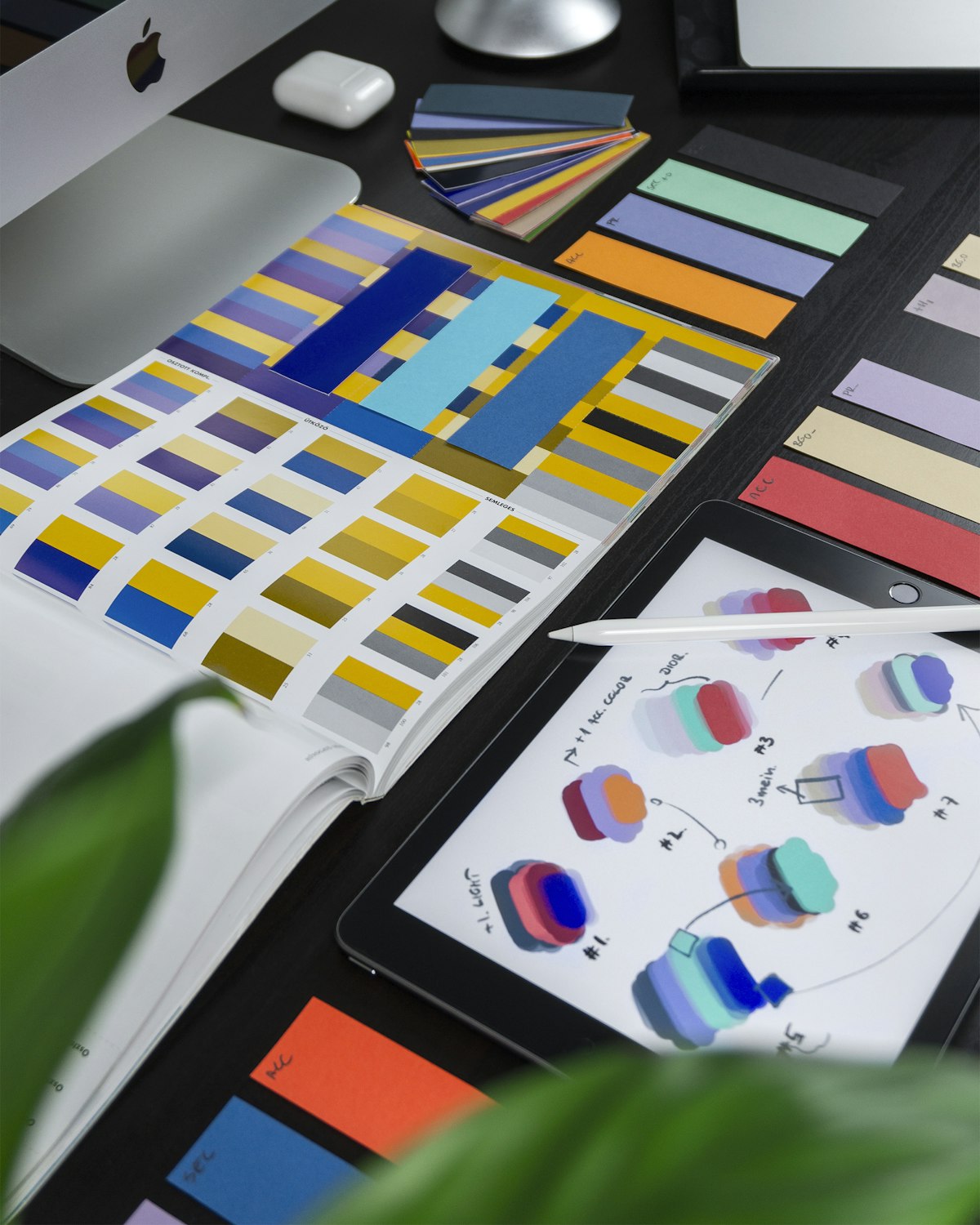
Canva started as a simple drag-and-drop design tool for people who could not use Photoshop. In 2026 it is something significantly more: a full AI-powered creative platform used by over 200 million people in 190 countries, with an AI suite — called Magic Studio — that handles image generation, copywriting, background removal, video editing, data visualization, and complete layout design from a single text prompt.
The April 2026 Canva AI 2.0 launch introduced the world's first design-specific AI foundation model — the Canva Design Model — alongside conversational design, persistent brand memory, and integration with OpenAI's gpt-image-2 for significantly improved photorealistic image generation. Canva's own 2026 AI in Marketing report found that 85% of marketers save at least 4 hours per week using Canva AI tools — the equivalent of one full extra workday every two weeks.
This guide walks you through every major AI feature inside Canva in 2026 — what each one does, which plan you need to access it, and the most effective way to use each one. No design experience required.
200M+Canva users worldwide in 2026 across 190 countries
10B+Times Canva AI tools have been used globally — all Magic Studio features
4 hrsAverage weekly time saved by marketers using Canva AI — Canva 2026 report
5.5xMore branded content produced per week with Magic Studio — Canva Mastery cohort data
Getting Started — Your First 5 Minutes on Canva
Before using any AI feature, these three setup steps make everything else work dramatically better:
1
Sign up with Google, Facebook, or email. The free plan gives you access to hundreds of thousands of templates and a limited but useful set of AI features including Magic Write and Background Remover.
2
Set up your Brand Kit immediately — this is the highest-leverage step
Go to Brand Kit in the left sidebar and upload your logo, set your brand colors, and select your brand fonts. Once your Brand Kit is set, every AI-generated design automatically uses your exact colors and fonts. Without a Brand Kit, AI designs are generic. With it, they are on-brand from the first draft. This one setup step takes 5 minutes and changes everything about the quality of AI output you get.
3
Choose your starting format before generating anything
Canva has over 100 format options — Instagram post, LinkedIn banner, YouTube thumbnail, presentation, A4 document, business card, and so on. Always select the correct format first. The AI features adapt their output to the selected canvas size and aspect ratio, which saves significant time resizing and reformatting after generation.
Every Major Canva AI Feature — Explained and Rated
Magic Design
Free — Limited
Full on Pro
Generate complete, ready-to-edit designs from a text description in seconds
Magic Design is Canva's flagship AI feature. You type a description of what you need — "Instagram post for a coffee shop grand opening, warm earthy tones, modern style" — and Canva generates 8 to 10 complete, ready-to-edit design options with appropriate colors, fonts, imagery, and layout in under 10 seconds. In 2026, Magic Design understands your Brand Kit so it automatically applies your colors and fonts to every generated option. It is most effective for social media posts, presentations, flyers, and marketing materials. It is less effective for highly technical or data-heavy designs which are better built manually.
Best Prompt Example
"Instagram post announcing a 20% summer sale for a boutique clothing brand. Style: clean and minimal. Use warm terracotta and cream tones. Include space for a product image on the right side."
Magic Write
Free — 25 uses/lifetime
Unlimited on Pro
AI copywriting built directly into your Canva canvas — no switching to ChatGPT
Magic Write is Canva's built-in AI text generator. Click on any text element in your design, select Magic Write, and type what you need — a headline, product description, social caption, event announcement, or any other copy. It generates text that fits within the design context rather than producing generic output. The key advantage over using a separate AI tool is workflow integration — you generate and refine copy inside the design without copying and pasting between apps. The free plan gives 25 lifetime uses, which runs out quickly. Pro users get unlimited access. For anyone creating regular content, this alone justifies the Pro upgrade.
How to Use It Effectively
Select a text box, click "Magic Write," and be specific: "Write a 15-word headline for a gym membership sale targeting busy professionals. Emphasize time efficiency, not fitness goals." Specific prompts produce copy that is usable immediately rather than requiring heavy editing.
Dream Lab
Pro Only — 500 credits/month
Text-to-image generation with photorealistic quality — powered by gpt-image-2 since April 2026
Dream Lab is Canva's dedicated AI image generator, significantly upgraded in April 2026 with the integration of OpenAI's gpt-image-2 model — giving it a major jump in photorealistic quality and detailed product imagery. Type a text description, select a style (photorealistic, illustration, watercolor, 3D render, and more), and Dream Lab generates 4 image options. Generated images drop directly into your Canva canvas with one click. Pro users get 500 Dream Lab credits per month — use them for hero images, background visuals, and custom illustrations rather than simple icons and textures, where Canva's existing stock library is faster and does not burn your credits.
Best Practice
Save Dream Lab credits for images you cannot find in stock libraries — unique product compositions, specific scenes, custom illustrations. For standard background textures, nature shots, and generic people photography, use Canva's free stock library instead. Your 500 monthly credits last much longer this way.
Background Remover
Pro Only — One Click
Remove any background from any photo instantly — no Photoshop required
Background Remover does exactly what it says, instantly and accurately. Upload any photo, click "Edit Image," then "Background Remover" — the background disappears in under 3 seconds, leaving a clean cutout of your subject. The 2026 version handles complex edges — hair, fur, transparent objects, fine details — significantly better than earlier versions. This is one of the most practically useful features for anyone creating product listings, team headshots, marketing materials, or any design that needs a clean isolated subject. It is Pro-only but is frequently cited as the single feature that justifies the Pro subscription for e-commerce sellers and small business owners.
Best Use Cases
Product photos for e-commerce listings, team member headshots for websites, creating sticker-style designs, and placing real objects into designed backgrounds. Works on any uploaded photo in JPEG or PNG format.
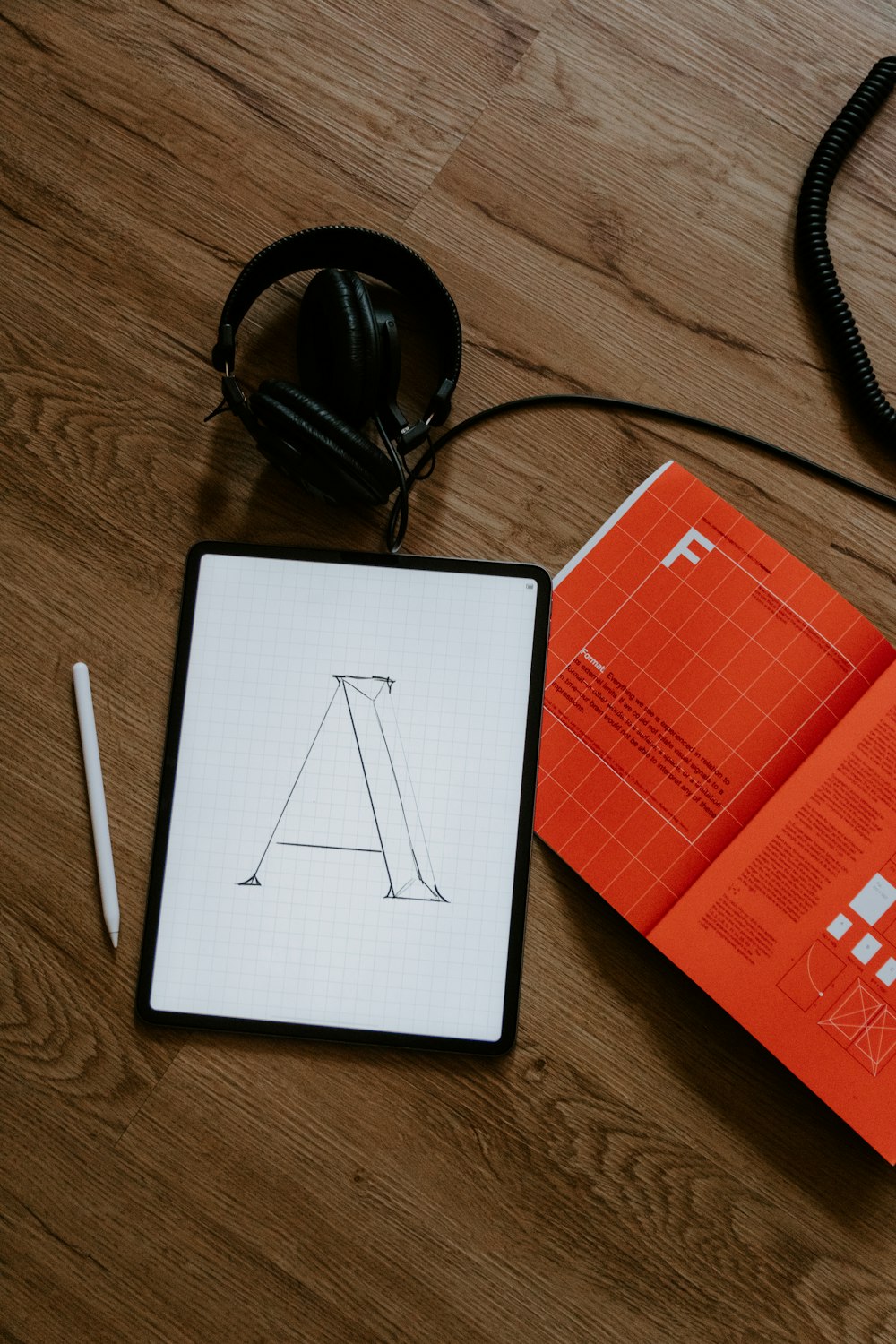
Canva Magic Studio brings AI image generation, copywriting, and design layout into one workflow — eliminating the need to switch between multiple apps for each task
Instantly resize any design for every platform — one click, every format
Magic Resize takes any design you have created and automatically reformats it for different platforms and dimensions. Design an Instagram post and Magic Resize converts it into a Facebook cover, LinkedIn banner, Pinterest pin, YouTube thumbnail, and story format — all at once, with elements repositioned to fit each format correctly. In 2026, it has improved significantly in how it handles text reflow and element repositioning, though complex designs with many overlapping elements may still need manual adjustment after resizing. For social media managers running content across multiple platforms, this feature alone saves hours every week.
Workflow Tip
Always design for the most restrictive format first — typically the square Instagram post. Then use Magic Resize to expand to wider formats. This approach requires fewer manual adjustments than resizing from a wide format to a square one.
Magic Edit and Magic Eraser
Free — Limited
Full on Pro
Edit or remove specific parts of any image using AI — without Photoshop
Magic Edit lets you brush over any part of an image and describe what you want to replace it with — change the color of a shirt, swap a background sky, add an object that was not in the original photo. Magic Eraser removes specific objects from a photo and fills the space intelligently with background content — remove a person from a crowd, delete a distracting object, clean up a product shot. Both features work entirely inside the Canva editor without any external photo editing software. The quality of Magic Edit improved substantially in the April 2026 update, particularly for clothing and object replacement tasks.
Best Use Case
Product photography cleanup — remove unwanted background elements, shadows, or reflections from product shots without sending them to a photo editor. Works best on photos with clear subjects and relatively simple backgrounds.
Create hundreds of design variations automatically from a spreadsheet
Bulk Create is one of the most powerful and least-known Canva AI features. Upload a CSV or Excel file with variable data — names, prices, product descriptions, dates, image URLs — and Canva generates a separate, complete design for every row in your spreadsheet, automatically. A Shopify store with 200 products can generate all 200 product cards, sale graphics, or social posts in under one hour. A school can generate 300 personalized certificates in minutes. An event company can produce custom invitations for every attendee automatically. If your work involves any kind of batch content production, Bulk Create changes the economics of that work entirely.
Real Example
Create one template for a product sale graphic. Connect it to a CSV with columns for product name, original price, sale price, and product image URL. Run Bulk Create. Every product gets its own fully formatted sale graphic automatically — 200 designs in the time it normally takes to make one.
Magic Layers
Pro Only — New in 2026
Extract editable layers from any AI-generated image — 9 million uses in its first month
Magic Layers is one of the newest and fastest-adopted features in Canva's history — used 9 million times in just over one month since its 2026 launch. When you generate an image with Dream Lab or import any photo, Magic Layers automatically identifies and separates the image into distinct, independently editable layers — the subject, background, foreground objects, and so on. You can then recolor, replace, or reposition individual elements without affecting the rest of the image. This bridges the gap between AI-generated images and fully editable design assets in a way that was previously only possible in professional photo editing software.
What Makes It Powerful
Generate a product scene image with Dream Lab, then use Magic Layers to separate the product from the background. Swap the background for different seasonal campaigns — holiday, summer, back-to-school — while keeping the same product cutout. Multiple campaign variations from one generation.
Canva Free vs Pro — What You Actually Get
| Feature | Free Plan | Pro — $14.99/month |
|---|
| Magic Design | Limited uses | Unlimited |
| Magic Write | 25 lifetime uses | Unlimited |
| Dream Lab (AI Images) | Not available | 500 credits/month |
| Background Remover | Not available | Unlimited |
| Magic Resize | Not available | Unlimited |
| Magic Edit and Eraser | Very limited | Full access |
| Bulk Create | Not available | Full access |
| Magic Layers | Not available | Full access |
| Brand Kit | 1 kit only | Multiple kits |
| Premium Templates | Not included | 610,000+ templates |
| Storage | 5GB | 1TB |
| Commercial Rights for AI Images | Not included | Included |
Who should upgrade to Pro: Anyone using Canva for business content, social media management, e-commerce, or any work where you produce more than 5 to 10 designs per month. At $14.99 per month, Canva Pro is the most affordable serious AI design suite available in 2026 — comparable tools like Visme charge nearly double for equivalent output.
Who can stay on Free: Students, occasional users, and anyone whose primary needs are basic template editing and simple social posts. The free Brand Kit, basic templates, and limited Magic Write covers light personal use adequately.
Best Use Cases — Who Canva AI Is For
Small Business Owners
Create social posts, promotional flyers, business cards, and presentations without hiring a designer. Brand Kit keeps everything consistent automatically.
Social Media Managers
Magic Resize and Bulk Create eliminate the repetitive reformatting work. Manage 10 client accounts at the volume previously requiring a design team.
E-Commerce Sellers
Background Remover cleans product photos instantly. Bulk Create produces hundreds of product graphics from a spreadsheet. Dream Lab generates lifestyle imagery.
Students and Teachers
Canva for Education is free for verified teachers and students with full Pro features including the AI suite. Best tool for presentations, posters, and project visuals.
Content Creators
YouTube thumbnails, podcast covers, newsletter headers, and Instagram content all produced consistently within a single brand identity without design skills.
Marketers and Agencies
Magic Studio's 5.5x content output multiplier is the most cited metric in agency settings. Multiple brand kits, team collaboration, and unlimited AI credits at scale.
"Canva AI 2.0 turned a blank canvas into a complete, on-brand design from a single conversational prompt. The tool stopped waiting for you to use it and started working the way a talented creative collaborator would." — SolidAITech, May 2026
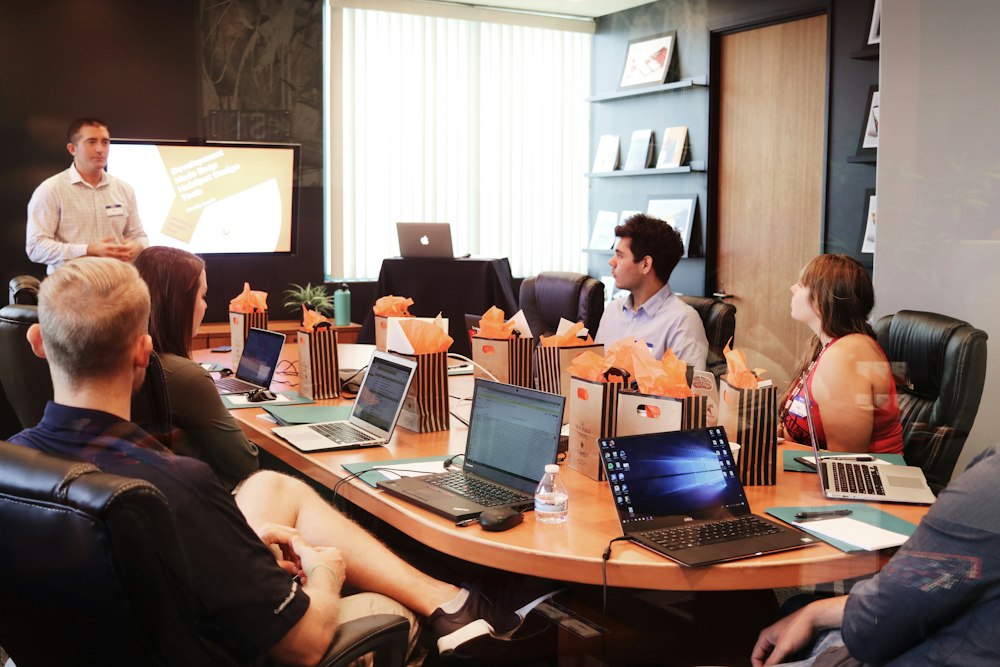
Teams using Canva AI Magic Studio produce 5.5 times more branded content per week than teams using traditional design workflows — without increasing headcount or budget
The Bottom Line: Canva AI in 2026 is genuinely impressive — and significantly more capable than most people who use Canva casually realize. The April 2026 AI 2.0 update with the Canva Design Model and gpt-image-2 integration moved it from a convenient design tool into a legitimate professional-grade creative platform.
The single most important thing to do before using any AI feature is set up your Brand Kit. Every AI-generated design draws from your Brand Kit automatically — without it, output is generic; with it, output is on-brand from the first draft. This one step, which takes five minutes, changes the quality of everything the AI produces for you.
Start with the free plan at canva.com. Set up your Brand Kit, try Magic Design for your most common content format, and use the limited Magic Write for your next three captions. If you find yourself hitting the free limits within a week — which most active users do — the Pro plan at $14.99 per month pays for itself in the first hour of use.
Want More AI Tool Guides?
We cover every major AI design and productivity tool every week — honest reviews, real tips, no sponsored rankings. All on AIHelpGuides.online.
Visit AIHelpGuides.online