How to Back Up Your Android Phone Before Switching Devices
Google Backup is one layer of a five-layer job, and the layers it skips are exactly the ones people miss: photos, chats, authenticator tokens, and loose files. Build the whole stack before you switch, and verify it before you erase anything.

The Model
A Backup Is Five Layers, Not One Button
The mistake that causes almost every Android switching disaster is treating "backup" as a single action. It is not. A resilient backup is a stack of five layers, each covering what the layer above it misses, and the reason people lose data is that they completed layer one and assumed they were done. Here is the stack, top to bottom.
Read the stack and the failure modes become obvious. Lose layer 3 and your chat history is gone even though "the phone backed up." Lose layer 4 and your photos arrive compressed or missing originals. Skip layer 5 and you discover the gap only after the old phone is erased. The layers are cumulative precisely because each one is incomplete on its own.
Before
The 24-Hours-Before Checklist
Do these in the day before you start the switch, not the morning of. Rushing backup is how layers get skipped.
- Update the phone and plug it in.Old software and a dying battery cause silent backup failures. Stable Wi-Fi, connected to power, the whole time.
- Confirm which Google account is primary.Contacts in one account and photos in another is a common, maddening split. Know where each lives before you move.
- Check iCloud-equivalent storage headroom.If Google One or Drive is full, the backup will fail partway and may not tell you clearly.
- Run Google Backup manually and wait for "Last backup" to update.Don't trust the toggle; trust the timestamp.
- Back up WhatsApp including videos if you need them.Note the date and size it reports.
- Export or prepare your authenticator accounts.This is the step with the highest blast radius if missed — see the trap below.
- Copy DCIM, Pictures, Download and Documents to a computer.Layer 4. The slow step, and the one that saves you when the cloud routes fall short.
During
What Each Layer Actually Covers
Layer 1, account sync, is reliable for what it does: contacts, calendar, Gmail, Drive and Photos move with the sign-in. The trap is assuming it reaches app internals. It does not. Your bank app's local settings, your notes app's drafts, your game's offline saves — none of that is in "sync."
Layer 2 is where manufacturer differences bite. Google Backup handles app data and device settings on Pixel and most stock-ish devices. Samsung, Xiaomi, OnePlus and others add their own clouds that can carry extras Google misses — Samsung Notes, reminders, certain settings — but they are brand-locked. A Samsung backup will not restore to a Pixel, and a Xiaomi local backup will not open on a Motorola. Use the manufacturer layer for convenience within the same brand, never as your only safety net across brands.
Layer 3 is the one people forget because it is invisible in the system settings. WhatsApp, Signal, Telegram and your notes apps each run their own backup, often to their own destination, and the system backup does not substitute for them. This layer is also where authenticators live, which deserves its own warning.
The authenticator trap — the highest-cost missed step
Two-factor tokens rarely transfer automatically, and losing them can lock you out of email, banking and social accounts even when every photo and chat migrated perfectly.
- Google Authenticator: use Export accounts where available, or re-enrol each service on the new device. Do not rely on the old phone keeping them alive.
- Authy: syncs across devices when enabled — verify your phone number and recovery settings before switching.
- Microsoft Authenticator: cloud backup where supported; otherwise re-add accounts manually after setup.
- Password managers: confirm the master password, check sync, export a backup if the app allows it, and store recovery codes offline.
If a service offers recovery codes, capture them now, while you still have access. A recovery code you saved is the difference between an inconvenience and a locked account.
Files
Layer 4: The Copy That Guarantees Originals
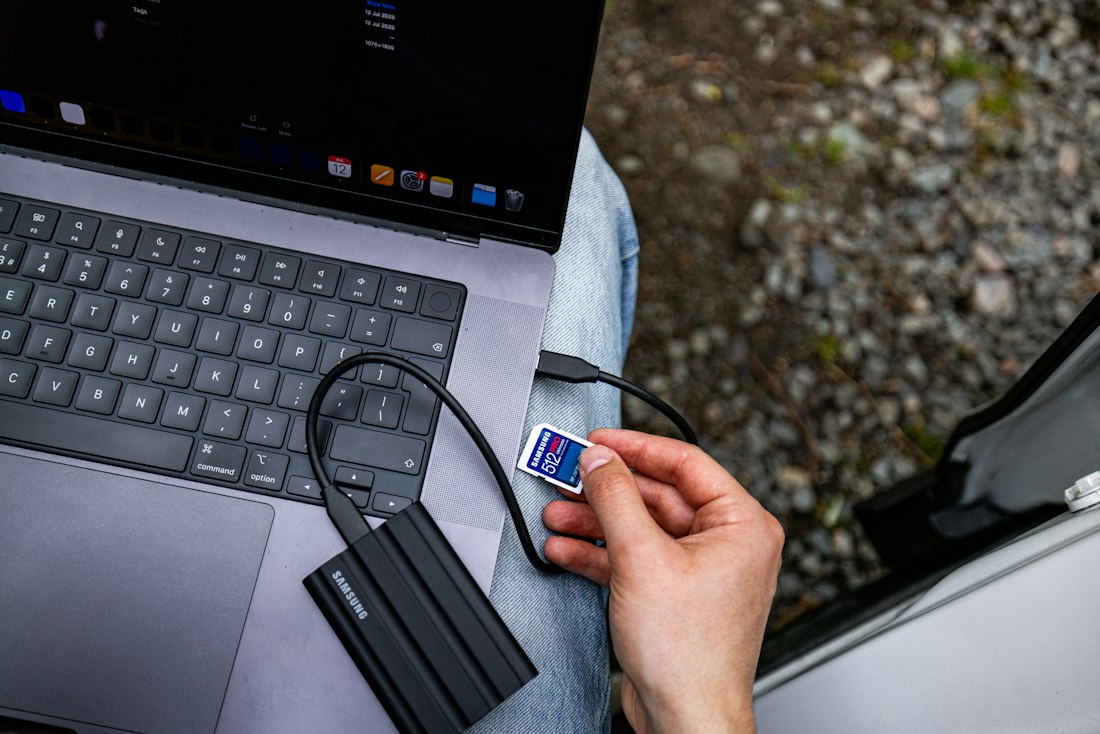
Cloud layers are convenient but they compress, they depend on storage headroom, and they can silently exclude folders. A direct file copy is the only layer that hands you the actual bytes. Connect the phone to a computer over USB, set the mode to File transfer (MTP), and copy these folders: DCIM (camera), Pictures (screenshots and app media), Movies, Download, Documents, and WhatsApp/Media plus Telegram if you want chat media outside the app backup. If the phone uses an SD card, copy that separately — it is not inside internal storage and the system backup will not include it.
Store the copy in a clearly named folder, something like Android Backup 2026, so it is distinguishable from the next one you make. This layer takes longest and feels redundant while the cloud is right there, and it is the layer that rescues people when the cloud route turns out to have been on storage-saver quality the whole time.
After
The Verification Gate
Layer 5 is the gate between "I backed up" and "I can actually restore." Run it before you set up the new phone, and certainly before you erase the old one. A backup that failed silently is worse than no backup, because it gives you false confidence at the worst moment.
- Open Google Photos and confirm recent photos and videos appear, at the quality you expect.
- Check contacts.google.com and confirm important numbers are present and complete.
- Open WhatsApp backup settings and confirm the last backup succeeded, with a sensible size.
- Confirm authenticator accounts can be exported or re-enrolled, and recovery codes are saved.
- Copy the Download folder to a computer or cloud drive and spot-check a few files open.
- Check the manufacturer cloud backup status and its last-backup timestamp.
- Test a small restore if possible — import the contacts vCard on another device, for instance.
The principle: for anything irreplaceable, open it outside the old phone and confirm it is accessible. A photo you can see in the cloud, a chat you can read in the backup log, a document you can download — those are verified. Everything else is assumed.
A worked case: the Pixel that lost its 2FA
A concrete version of the trap. A user upgrades from one Pixel to another, signs into the same Google account, and everything appears to migrate — apps restore, photos appear, contacts are there. They erase the old phone that evening, satisfied.
The next morning their banking app asks for a two-factor code. Google Authenticator on the new phone is empty, because the tokens never transferred and the old phone is gone. The bank's recovery process takes days. Email, a cloud storage account, and a social profile that all used the same authenticator are now locked too.
Nothing in the story was a Google Backup failure — layer 2 worked perfectly. The loss was entirely in layer 3, the authenticator, which no system backup covers and which the verification gate would have caught in ten seconds. The fix that would have prevented it: export the authenticator accounts, or capture recovery codes, before erasing. That is the whole lesson of the five-layer model in one anecdote.
The Honest Takeaway
Build the Stack, Then Pass the Gate
Backing up an Android phone before switching is not difficult, but it is not one action either. Google Backup is a good foundation and a misleading one, because it covers enough to feel complete while skipping the four things people actually miss: photos at original quality, chat history, authenticator tokens, and loose files. Build all five layers, and treat the verification gate as non-negotiable.
The old phone is your safety net until the new one is proven, so keep it powered and untouched until every check passes. A careful stack takes an evening; reconstructing lost chats, re-enrolling locked accounts, or recovering deleted photos takes far longer and sometimes cannot be done at all. For the photo-specific side of the same switch, see our guides to moving photos between Android and iPhone, and for the contacts layer, see our guide to transferring contacts to a new phone.
Common Questions
Frequently Asked Questions
Is Google Backup enough before switching Android phones?
No, not on its own. It covers app data, settings, contacts and calendar where supported, but not a full photo backup, WhatsApp chats, authenticator tokens, or loose files. Treat it as the foundation, not the whole structure.
How do I back up WhatsApp chats on Android?
WhatsApp Settings → Chats → Chat Backup, to Google Drive, including videos if needed. Confirm the backup completed and note its date and size before touching the new phone.
What happens to my authenticator apps when I switch?
Two-factor tokens usually do not transfer automatically. Export from Google Authenticator where supported, or re-enrol each account on the new device, and capture recovery codes while you still have access.
Should I erase the old phone right after the new one works?
No. Keep it until you have verified photos, chats, contacts, documents and security accounts. The losses that surface weeks later are the ones an early erase makes unrecoverable.
Do manufacturer clouds replace Google Backup?
They complement it within the same brand — Samsung Notes, reminders, certain settings — but they are brand-locked and will not restore across brands. Use them as an extra layer, never the only one.
Is a direct file copy really necessary if I use Google Photos?
For irreplaceable media, yes. Cloud routes can compress, depend on storage headroom, and exclude folders. A USB copy is the only layer that guarantees you the original bytes.
How long should the whole backup take?
Plan an evening for a full five-layer stack on a heavily used phone, mostly waiting on photo and chat backups. The verification gate adds ten minutes and is the part people skip to their cost.
More backup & switching guides like this
We treat backup as a layered structure rather than a single button, so the things people actually miss — chats, tokens, originals — get covered before the old phone is erased.
Explore All GuidesKeep Reading
Sources:
Google Support — back up your Android device · Samsung Support — Samsung Cloud & Smart Switch · WhatsApp FAQ — chat backup
Other Projects
More from the creator
Explore two other projects from the same creator.