How to Check Your PC's Storage, RAM, CPU and Graphics Card
Whether you're troubleshooting a slowdown, deciding what to upgrade, or checking if your machine can run something new, every spec you need is already built into Windows 11 — no download required. Here's exactly where to look for each one.

Every core spec — storage, RAM, CPU, and graphics card — is visible through Windows 11's own built-in settings, no extra software needed.
One Screen Shows Almost Everything
Settings > System > About gives a quick overview of your processor, installed RAM, and Windows edition all on one screen. For graphics card details and a slightly more complete technical readout, Task Manager's Performance tab or the classic dxdiag tool round out the picture. None of it requires installing anything — every method below uses what's already on your PC.
Third-party system information tools do exist and offer more granular detail in some cases — motherboard model, exact RAM timings, individual drive health metrics — but for the common cases (checking specs before an upgrade, confirming compatibility, or troubleshooting) the built-in tools below cover what's actually needed without adding another download to trust.
Storage — How Much Space You Have and What's Using It
- Open Settings > System > Storage.
Shows total capacity, used space, and free space for each drive, plus a category breakdown of what's using the space.
- Click "Show more categories" for detail.
Breaks usage down further by apps, temporary files, documents, and other categories, useful for tracking down what's actually filling a drive.
RAM — How Much Memory Is Installed
- Open Settings > System > About.
The "Installed RAM" line shows total memory, along with the number of memory slots in use if that detail is relevant to an upgrade.
- For real-time usage, check Task Manager's Performance tab.
Shows how much of your installed RAM is currently in use, plus speed and slot configuration under the Memory section.
CPU — Which Processor Is Installed
- Open Settings > System > About.
The "Processor" line shows the exact CPU model, useful for looking up its specifications or comparing against a game or software's requirements.
- For live usage and core details, check Task Manager's Performance tab.
The CPU section shows current usage, core and thread count, and base clock speed.
Graphics Card — Which GPU Is Installed
- Open Task Manager's Performance tab.
Scroll to the GPU section (or GPU 0, GPU 1 if you have both integrated and dedicated graphics) to see the model name and current usage.
- For a more detailed readout, run dxdiag.
Press Windows key + R, type dxdiag, press Enter, then click the Display tab for GPU model, driver version, and available video memory.
You can influence which GPU a specific app uses through Settings > System > Display > Graphics, where individual apps can be set to prefer "Power saving" (integrated graphics) or "High performance" (dedicated GPU) rather than relying entirely on automatic switching — useful if a demanding app is unexpectedly running on integrated graphics and performing worse than expected as a result.
Windows Version and System Type (32-bit vs 64-bit)
Beyond the four core hardware specs, a couple of software-level details are worth checking at the same time, since they're on the same screen and often needed for the same troubleshooting or compatibility purposes.
- Check Settings > System > About > Windows specifications.
Shows your exact Windows 11 edition, version number (like 25H2), and build number — useful when a piece of software asks for a minimum Windows version.
- Check "System type" under Device specifications.
Confirms whether you're running 64-bit Windows (virtually universal on modern PCs) — relevant only for very old software that specifically requires one or the other.
The same Device specifications section also lists your PC's manufacturer and exact model name, which is worth noting down separately if you'll be looking up manufacturer-specific driver downloads or checking a warranty status — it's easy to forget the precise model number of a laptop bought a year or two ago.
Where to Look for Each Spec
Storage
Settings > System > Storage — capacity, usage breakdown, and free space per drive.
RAM
Settings > System > About for total installed; Task Manager for real-time usage.
CPU
Settings > System > About for the model name; Task Manager for cores, threads, and speed.
GPU
Task Manager's Performance tab for a quick check; dxdiag for driver version and video memory.
Why This Matters Beyond Curiosity
Knowing your exact specs is useful in a few genuinely practical situations: deciding whether a RAM or storage upgrade would help before spending money, checking whether your PC meets a game or software's stated requirements before buying it, and providing accurate information when asking for troubleshooting help, since "it's slow" is far less useful to diagnose than "8GB RAM, integrated graphics, and an older mechanical hard drive."
It's also worth checking specs before assuming an upgrade is even possible. Many laptops, particularly thinner ultrabooks, solder RAM directly to the motherboard, making it non-upgradeable regardless of how many free-looking slots Task Manager appears to show. Checking your specific laptop model's official specifications (rather than relying on Task Manager alone) before buying RAM avoids a wasted purchase — desktops are far more consistently upgradeable than laptops in this respect.
Why Does Task Manager Show Less RAM Than I Installed?
This is normal and expected — a small portion of installed RAM is reserved by the system for hardware-level functions (like integrated graphics borrowing some memory, or the motherboard reserving a slice for firmware) and isn't available to Windows or your apps. Seeing, for example, 15.8GB usable out of 16GB installed is typical and doesn't indicate a problem or missing memory.
A similar gap shows up with storage capacity too, and for a related reason: a drive advertised as "1TB" typically shows closer to 930-950GB in Windows, because manufacturers calculate capacity using decimal units (1TB = 1,000,000,000,000 bytes) while Windows displays it using binary units (1TB shown as roughly 931GiB using the same raw byte count). Nothing is missing in either case — it's the same physical storage, just two different, both technically valid, ways of counting it.
Checking Storage Type (SSD vs Hard Drive) Matters More Than Capacity
Beyond just how much storage you have, whether it's a solid-state drive (SSD) or a traditional mechanical hard drive (HDD) has a far bigger impact on how fast your PC feels day to day than the capacity number alone. Settings > System > Storage > Advanced storage settings > Disks & volumes shows each drive's type directly, labeled "Solid state drive" or "Hard disk drive."
This distinction matters most when considering an upgrade: more RAM or a faster CPU rarely fixes a PC that's still running Windows itself off a mechanical hard drive, since drive speed is often the actual bottleneck in that specific case, regardless of how capable the rest of the hardware is.
Within SSDs themselves, there's a further distinction worth knowing: NVMe SSDs (which connect via the faster M.2 slot) are meaningfully quicker than SATA SSDs (which use the older, more common connector), even though both are labeled simply as "Solid state drive" in the Disks & volumes screen. If precise interface type matters for a specific upgrade decision, dxdiag's Save All Information button exports a more detailed text report that includes this level of hardware detail, going beyond what the Settings app surfaces directly.
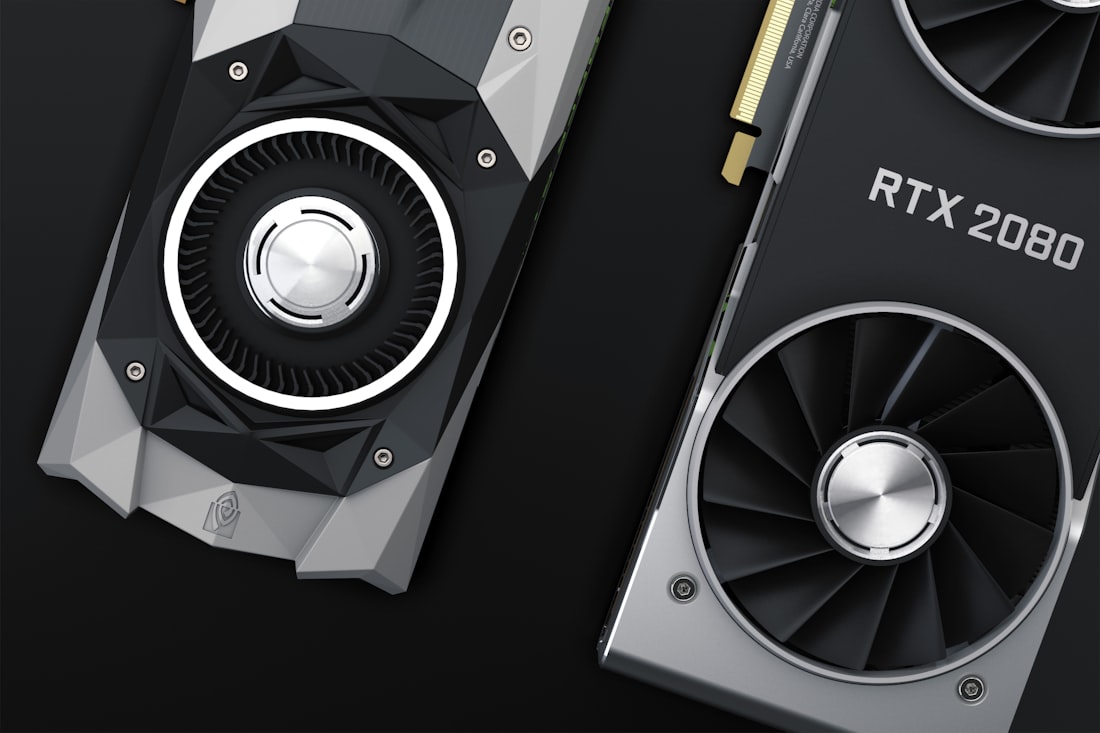
Drive type (SSD vs HDD) affects everyday speed more than capacity does — worth checking alongside the raw numbers.
Bottom Line
Settings > System > About covers RAM and CPU at a glance; Settings > System > Storage covers drive space; Task Manager's Performance tab or dxdiag covers the graphics card and live usage for everything else. All built in, all free, no extra software needed.
More Windows 11 Fixes, Written Clearly
Browse our full library of Windows 11 troubleshooting guides, updated as the OS changes.
More from the creator
Explore two other projects from the same creator.