How to Fix a Full C Drive on Windows 11
A full C drive is more than an annoying warning banner — below a certain threshold, Windows genuinely struggles to manage temporary files and virtual memory, and feature updates can fail to install outright. The fix isn't always uninstalling things you actually want. Often it's finding what's disposable, and for what isn't, moving it somewhere else entirely rather than deleting it.
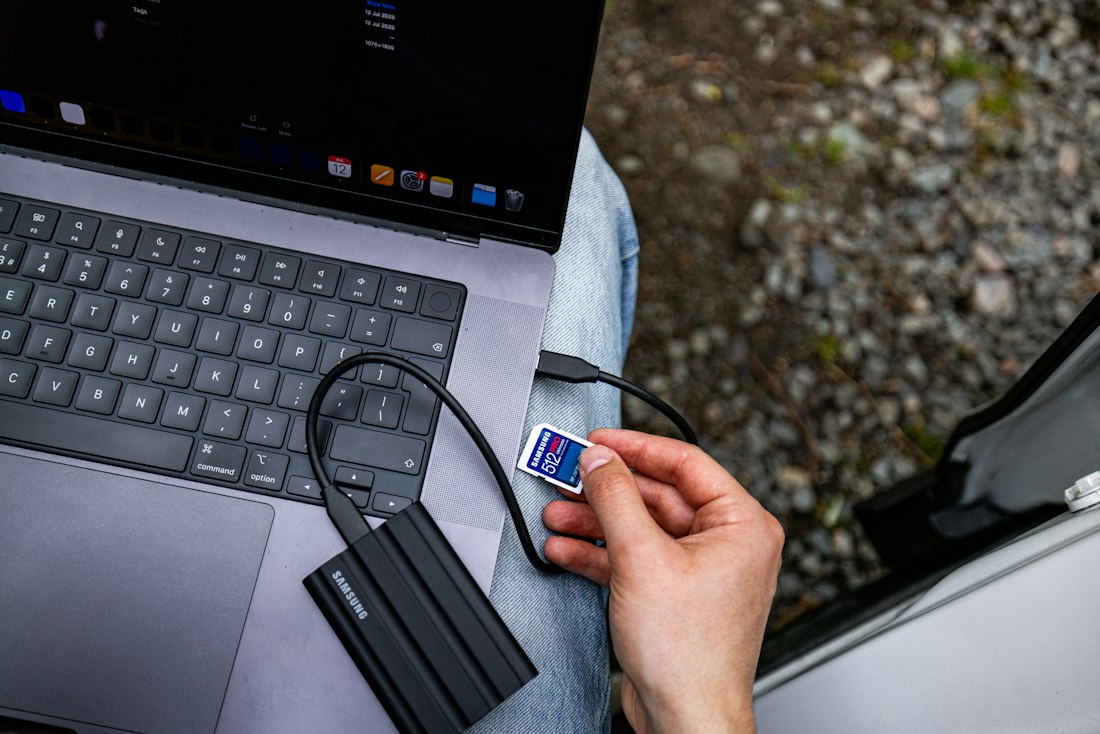
A full C drive doesn't always mean uninstalling things — moving large apps to a second drive keeps them intact while freeing real space.
Clear the Disposable Stuff First
Before anything more involved, run the built-in cleanup: Settings > System > Storage > Temporary files, keep the default categories checked, and remove them. This alone commonly recovers several gigabytes without touching anything you created — cached updates, temp files, and Recycle Bin contents are all fair game and none of it is a document you'd miss.
If a feature update happened recently, check specifically for "Previous Windows installation" in that same Storage list — Windows keeps this backup for 10 days in case you need to roll back, and it commonly runs 10-20GB. Once you're confident the update is stable, clearing it is one of the single largest wins available.
Move Apps to Another Drive Instead of Removing Them

If you have a second drive — internal or external — moving large apps there keeps them fully intact while freeing real space on C:.
If you have a second drive available, internal or external, Windows 11 can move many installed apps there directly, without a full uninstall-and-reinstall. Go to Settings > Apps > Installed apps, find the app you want to move, click the three-dot menu next to it, and select Move. Choose your destination drive and confirm — the app stays fully intact and functional, just relocated.
You can also change where new installs go by default, so this doesn't become a recurring chore: Settings > System > Storage > Advanced storage settings > Where new content is saved, and set "New apps will save to" a different drive going forward.
Large Files and Old Games
Games are frequently the single largest category on a full C drive, and most modern launchers — Steam, Epic, the Xbox app — let you install specific titles to a chosen drive from the start, or move existing ones after the fact through the launcher's own settings rather than Windows'. This is usually faster and more reliable than trying to move a game manually, since launchers handle the internal file references that a raw copy-paste would break.
Beyond games, a size-based search finds the rest: open File Explorer, click This PC, and search size:>1GB to list every large file on the drive, sorted by size. Move anything that doesn't need to live on your fast system drive — video files, old project archives, disk images — to external storage or a secondary drive.
| What's Large | Best Fix |
|---|---|
| Installed games | Move via the game launcher's own settings, not manually |
| Store apps | Settings > Apps > Installed apps > Move |
| Desktop programs (.exe installers) | Reinstall directly to a different drive |
| Videos, archives, old projects | Move manually to external or secondary storage |
Turn On Storage Sense
Once C: has breathing room again, turning on Storage Sense (Settings > System > Storage > Storage Sense) keeps it that way automatically — it periodically clears temporary files and old Recycle Bin contents without needing to be run manually. It's worth noting Storage Sense only manages your system drive; if you've moved files to a second drive, that one still needs occasional manual attention.
When to Consider a Bigger Drive
- Clear temporary files and old update backups
- Move apps and games to a second drive where possible
- Find and relocate large personal files
- Turn on Storage Sense to prevent recurrence
- C: is a small drive (128-256GB) that's consistently near full even after cleanup
- You genuinely need everything currently installed, with no reasonable cuts
- You're regularly working with large files — video, large datasets, big creative projects
The Hibernation File
If you rarely or never use Sleep-with-hibernation specifically, the hibernation file (hiberfil.sys) is worth checking — it reserves space roughly equal to your installed RAM, sitting quietly on C: whether or not you actually use the feature it supports. Open an administrator Command Prompt and run powercfg /hibernate off to disable it and reclaim that space. This is fully reversible with powercfg /hibernate on if you later decide you want hibernation back, and it has no effect on regular Sleep mode, which works independently.
Disk Cleanup's "Clean Up System Files" Option
It's worth running Disk Cleanup a second time specifically through its expanded mode, since the default view and the "system files" view show different categories. Search "Disk Cleanup," select your C drive, then click Clean up system files near the bottom — this unlocks additional categories the basic view doesn't show, including old driver packages, Windows Update leftovers, and (if applicable) that previous-installation backup mentioned earlier. On a drive that's been through several feature updates without a cleanup in between, this expanded pass alone sometimes recovers more space than everything else in this guide combined.
When It's Neither Files Nor Apps
In rarer cases, a C drive that fills up rapidly and repeatedly, faster than normal usage would explain, can be a sign of malware silently downloading or generating files in the background. This is far less common than the ordinary causes covered above, but worth ruling out if you've genuinely cleared everything obvious and the drive keeps filling at a pace that doesn't match your actual usage. Running a full scan with Windows Security (Settings > Privacy & security > Windows Security > Virus & threat protection) takes a while but costs nothing and rules this out definitively rather than leaving it as a nagging possibility.
Frequently Asked Questions
Why does my C drive keep filling up even though I don't install much?
The most common causes are hidden system data rather than anything installed on purpose: temporary files, old Windows Update backups, hibernation files, and browser or app caches that grow quietly over time. Games and creative software also default to installing on C: unless you change the setting, which can fill a drive fast even with relatively few programs.
Can I move installed programs off my C drive without reinstalling them?
For Microsoft Store apps, yes — go to Settings > Apps > Installed apps, click the three dots next to the app, and select Move, then choose a destination drive. Traditional desktop programs installed via a .exe installer generally don't support this built-in move feature and typically need to be uninstalled and reinstalled to a different drive instead.
How much free space should I keep on my C drive?
Microsoft recommends at least 20GB free at all times. Below roughly 10-15% free space, Windows Update can fail to install feature updates, and general system performance tends to degrade as the drive has less room to manage temporary files and virtual memory.
More Windows Guides, Written Clearly
Browse our full library of software and troubleshooting explainers, updated as Windows changes.
More from the creator
Explore two other projects from the same creator.