How to Fix No Sound on Windows 11
Before assuming a speaker or headphone jack has failed, there's a specific, quick sequence of checks that resolves the overwhelming majority of "no sound" cases on Windows 11 — starting with the single most common cause of all: the wrong output device selected.
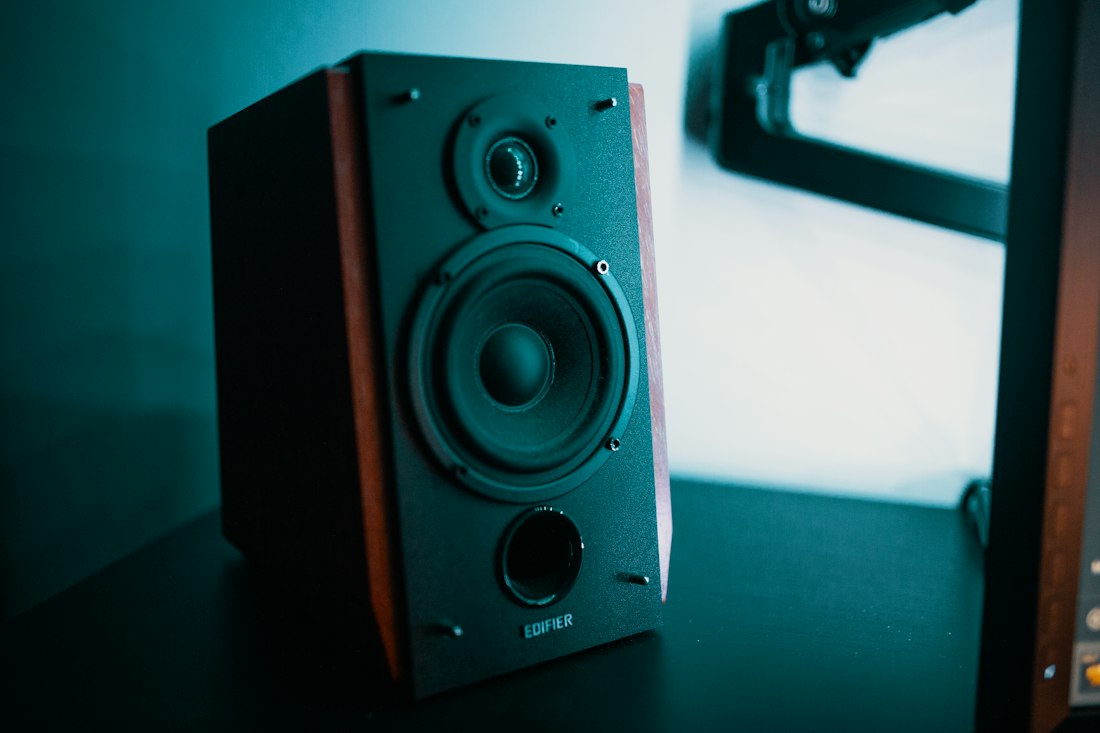
Most "no sound" problems on Windows 11 trace back to the output device selection, not a hardware failure.
Check the Output Device Before Anything Else
The single most common cause of "no sound" on Windows 11 isn't a broken driver or dead hardware — it's simply that audio is being routed to a different output device than the one you're expecting. This happens constantly after connecting a monitor with speakers, pairing Bluetooth headphones that then disconnect, or plugging in a USB headset that becomes the new default without you choosing it.
Click the speaker icon in the taskbar and check which device is selected. If it's not the one you expect, select the right one — this alone resolves a large share of "no sound" reports without needing anything more involved.
Confirm the Output Device and Volume Mixer
- Click the speaker icon in the taskbar.
Confirm the correct device is selected and the volume slider isn't at zero.
- Check the per-app volume mixer.
Settings > System > Sound > Volume mixer shows individual volume levels per app — it's easy for one specific app to be muted or turned down without affecting anything else.
- Set the correct default device explicitly.
Settings > System > Sound > Output shows all detected devices; click the one you want to use as the default.
Run the Built-In Audio Troubleshooter
- Right-click the speaker icon in the taskbar.
Choose "Troubleshoot sound problems."
- Follow the prompts.
It checks the output device, driver status, and a few other common causes, applying fixes automatically where it can.
Update or Reinstall the Audio Driver
A driver that failed or reverted to a generic version after a Windows update is the next most common cause, especially if sound was working fine before an update and stopped immediately after.
- Open Device Manager.
Right-click the Start button and choose Device Manager, then expand "Sound, video and game controllers."
- Right-click your audio device and choose "Update driver."
Select "Search automatically for drivers." If nothing newer is found, right-click again and choose "Uninstall device," then restart — Windows reinstalls a driver automatically.
Restart the Windows Audio Service
Like many Windows features, audio relies on a background service that can occasionally stall without any visible error.
- Open Services.
Search "Services" in the Start menu.
- Find Windows Audio, right-click, and choose Restart.
If it shows as stopped, choose Start instead.
Set Default Format and Check Exclusive Mode Conflicts
Occasionally, sound stops working for a specific app because another app has locked exclusive access to the audio device — common with certain games, DAWs, or streaming software that request direct hardware access.
- Open Settings > System > Sound > your device.
Under "More device properties," go to the Advanced tab.
- Uncheck "Allow applications to take exclusive control of this device."
This forces all apps to share the audio device through Windows rather than locking it individually, which resolves conflicts where one app silences everything else.
Common Causes, at a Glance
Wrong Output Selected
The single most common cause — audio routed to a monitor, disconnected Bluetooth device, or unexpected default.
Driver Failure
Especially common right after a Windows update replaces a manufacturer driver with a generic one.
App-Specific Mute
One app has no sound while everything else works — check the per-app volume mixer, not system settings.
Stalled Service
Windows Audio service stuck or stopped — invisible without checking Services directly.
When It's Actually Hardware
If sound works fine through headphones plugged into the 3.5mm jack but not through the built-in speakers (or vice versa), and the fixes above haven't changed that, it starts pointing toward a hardware-level issue with that specific output rather than a system-wide software problem. Testing the same audio on a different device — plugging your headphones into a phone, for example — helps confirm whether the headphones themselves or the PC's output is at fault.
Distorted, crackling, or robotic-sounding audio (as opposed to complete silence) is a different symptom worth separating out, since it usually points toward a driver or sample-rate mismatch rather than a hardware fault. Setting the audio format explicitly under the device's Advanced tab — trying a lower or higher sample rate than whatever is currently selected — resolves this specific symptom in most cases, since it's essentially Windows and the audio hardware disagreeing on the exact format being sent.
External DACs, USB audio interfaces, and docking stations add another layer worth checking specifically: if audio routes through one of these before reaching your speakers or headphones, confirm the device itself has power and its own volume or mute controls aren't the actual culprit — it's easy to spend time troubleshooting Windows settings when the real issue is a physical switch or dial on an intermediate device.
Why Does Sound Break Right After a Windows Update?
Audio drivers are frequently affected by Windows updates because many PCs use a manufacturer-specific driver that's more capable than the generic one Windows ships with — and an update can silently revert to the generic version, or reset the default output device selection back to a built-in speaker even if you'd been using external speakers or headphones. Checking the output device first (Fix 1) and the driver second (Fix 3) covers the two most likely explanations in the order they're most likely to actually be the cause.
It's also worth checking your PC manufacturer's support site directly for an updated audio driver if Device Manager's automatic search comes back empty — manufacturer-provided drivers for audio chipsets are often more current and more feature-complete than what Windows Update distributes generically, and this gap tends to widen briefly after every major Windows feature update while manufacturers catch up.
Spatial Sound and Enhancements Can Cause Silent Playback Too
Windows 11's spatial sound and audio enhancement features, while generally reliable, occasionally conflict with certain hardware or specific apps in ways that produce complete silence rather than a degraded experience. If sound stopped working after enabling a spatial audio format (like Windows Sonic or Dolby Atmos) or an audio enhancement, temporarily disabling it under Settings > System > Sound > your device > Output settings is worth testing as a targeted fix before assuming a driver problem.
HDMI and DisplayPort audio adds one more wrinkle worth knowing about: when a monitor or TV is connected over HDMI, Windows often registers it as a separate audio output device automatically, and it can silently become the new default without asking. If sound worked fine before connecting a display and stopped afterward, check the output device list under Settings > System > Sound — the monitor is very likely listed there now, quietly receiving the audio your speakers used to get.
Audio enhancements and spatial sound formats are a less obvious cause worth checking if sound broke right after enabling one.
Bottom Line
Start with the output device selection and volume mixer — this alone resolves most cases. If that doesn't work, run the built-in troubleshooter, then check Device Manager for a driver issue, especially if sound broke right after a Windows update. A stalled Windows Audio service is the next place to check if all of that comes up clean.
More Windows 11 Fixes, Written Clearly
Browse our full library of Windows 11 troubleshooting guides, updated as the OS changes.
More from the creator
Explore two other projects from the same creator.