Windows 11 Bluetooth Not Working? How to Fix It
Whether Bluetooth vanished from Settings entirely, your headphones won't pair, or a device keeps disconnecting mid-use, there's a specific order of fixes that resolves nearly every version of this problem — starting with the simplest and working up.
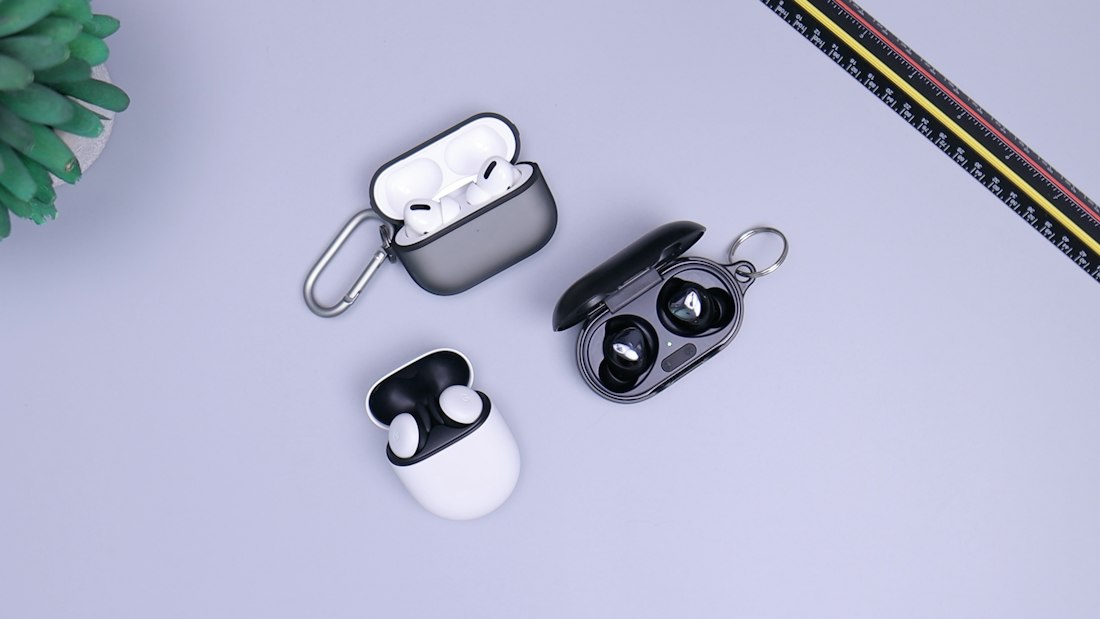
Bluetooth pairing issues in Windows 11 usually trace back to one of a handful of specific, fixable causes.
Start With the Toggle, Then Work Down the List
Before anything more involved, confirm Bluetooth is actually turned on: open Quick Settings (click the Wi-Fi/battery icon in the taskbar) and check the Bluetooth tile is active, not just present. It's a common false alarm — Bluetooth looking "broken" when it was simply switched off, sometimes by an accidental keyboard shortcut or after a driver update reset the setting.
If it's confirmed on and the problem persists, work through the fixes below roughly in order — most Bluetooth issues resolve within the first three or four steps without needing anything more advanced.
Run the Bluetooth Troubleshooter
Windows 11's built-in troubleshooter catches a surprising number of common Bluetooth problems automatically.
- Open Settings > System > Troubleshoot > Other troubleshooters.
Find Bluetooth in the list and click Run.
- Follow any suggested fixes it finds.
It checks for disabled services, driver issues, and a few other common causes, applying fixes automatically where it can.
Restart the Bluetooth Support Service
A stalled background service is a common, invisible cause — restarting it often clears the problem without needing a full reboot.
- Open Services.
Search "Services" in the Start menu and open the app.
- Find Bluetooth Support Service.
Right-click it and choose Restart. If it's not already running, choose Start instead.
Update or Reinstall the Bluetooth Driver
This is the fix that resolves the "Bluetooth missing from Settings entirely" version of the problem most often, since a failed or outdated driver is usually the root cause when the toggle itself disappears.
- Open Device Manager.
Right-click the Start button and choose Device Manager.
- Expand Bluetooth and find your adapter.
A yellow warning triangle here confirms a driver problem.
- Right-click and choose "Update driver," then "Search automatically."
If that doesn't find anything newer, right-click again and choose "Uninstall device," then restart your PC — Windows reinstalls a fresh driver automatically on reboot.
Remove and Re-Pair the Problem Device
If Bluetooth itself works but one specific device won't connect reliably, the saved pairing information for that device may be corrupted.
- Go to Settings > Bluetooth & devices.
Find the problem device and click the three-dot menu, then Remove device.
- Put the device back into pairing mode and re-add it.
Click "Add device" and follow the pairing steps as if connecting it for the first time.
Check Power Management Isn't Turning the Adapter Off
Windows can be set to power down the Bluetooth adapter to save battery, and on some laptops this setting is aggressive enough to disconnect devices during normal use, particularly on battery power.
- Open Device Manager and find your Bluetooth adapter.
Right-click it and choose Properties.
- Go to the Power Management tab.
Uncheck "Allow the computer to turn off this device to save power."
This same tab is also worth checking on desktop PCs using a USB Bluetooth adapter — USB ports have their own separate power management setting under the adapter's USB Root Hub properties, and disabling power-saving there closes off a second, easy-to-miss place the same underlying issue can hide. It's a small check, but it's one people frequently miss because it lives under the USB controller's properties rather than the Bluetooth adapter's own entry in Device Manager, so the two settings don't show up in the same place even though they can produce identical symptoms.
Rule Out a Windows Update in Progress
A Windows Update running or pending a restart in the background can interfere with Bluetooth alongside other system functions, since driver-level services sometimes get deprioritized during update processing. Check Settings > Windows Update for anything stuck mid-download or waiting on a restart — finishing it off can resolve Bluetooth issues that seem otherwise unrelated to updates.
Common Causes, at a Glance
Driver Failure
The most common cause of Bluetooth vanishing from Settings entirely, usually after a Windows update.
Corrupted Pairing
One specific device won't connect while Bluetooth itself works fine with others.
Stalled Service
Bluetooth Support Service stuck or not running — invisible without checking Services directly.
Wi-Fi Interference
Devices lag or drop, but the connection technically works — a shared-frequency issue, not a broken one.
When It's Actually a Hardware Problem
If none of the fixes above help and Device Manager consistently fails to detect any Bluetooth adapter after multiple driver reinstalls and restarts, that's a signal worth taking seriously — it may point to a genuine hardware fault rather than a software issue. This is uncommon but does happen, particularly on older laptops. A cheap USB Bluetooth adapter is a practical workaround that sidesteps a failed internal adapter entirely, without needing a repair.
Desktop PCs are a slightly different case, since many don't include Bluetooth at all unless the motherboard specifically has it built in — if Bluetooth never appeared in Settings on a desktop, even before any troubleshooting, that's worth confirming against your motherboard's specifications before assuming something broke. A USB Bluetooth adapter is the standard, inexpensive fix either way.
Why Does Bluetooth Break After a Windows Update Specifically?
Windows updates occasionally replace or reset device drivers as part of the update process, and Bluetooth drivers are a common casualty because they're often provided by the PC manufacturer rather than Microsoft directly — meaning the generic driver Windows installs during an update can be less capable than the manufacturer's original one. This is exactly why reinstalling the driver (Fix 3 above) resolves so many post-update Bluetooth problems: it's not that Bluetooth stopped working, it's that the driver quality regressed.
If reinstalling through Device Manager pulls the same generic driver back down, checking your laptop or motherboard manufacturer's support site directly for a dedicated Bluetooth driver often produces a better result than relying on Windows Update alone, since manufacturer-specific drivers are typically tuned for that exact hardware rather than the generic in-box version.
Wi-Fi Sharing the Same Frequency Causes Real Interference
Bluetooth and 2.4GHz Wi-Fi occupy the same radio frequency band, and on laptops where the antennas for both sit physically close together, heavy simultaneous Wi-Fi use can cause Bluetooth audio to stutter or devices to lag, even though the connection is technically fine. This shows up specifically as lag or dropouts during use, distinct from a device that fails to pair at all — a genuinely different problem with a different fix.
Switching your router to broadcast on the 5GHz band, if it supports dual-band, removes this specific interference source entirely, since 5GHz and Bluetooth don't share the same frequency range. If your router is single-band and only offers 2.4GHz, moving the Bluetooth device physically closer to the PC (reducing the range Bluetooth needs to cover) also reduces the practical impact of the interference, even though it doesn't remove the underlying cause.
This distinction matters for diagnosis: if a device pairs successfully but audio or input lags intermittently rather than failing outright, that pattern points toward interference rather than a driver or pairing problem, and none of Fixes 1 through 4 above will resolve it — the fix has to address the frequency conflict directly.

Bluetooth stutter during use, as opposed to failing to pair at all, is often a Wi-Fi interference issue rather than a driver problem.
Bottom Line
Run the built-in Bluetooth troubleshooter first, then restart the Bluetooth Support Service, then update or reinstall the driver through Device Manager if the toggle itself is missing. For a single misbehaving device, removing and re-pairing it usually clears up corrupted pairing data that a driver fix won't touch.
More Windows 11 Fixes, Written Clearly
Browse our full library of Windows 11 troubleshooting guides, updated as the OS changes.
More from the creator
Explore two other projects from the same creator.