How to Extract Frames From a Video With Titan Converter
Turning a video into a folder of individual images sounds niche until you actually need it — picking a thumbnail, pulling a reference image, or feeding frames into another tool. Here's how Titan Converter's Extract Frames tool handles it.
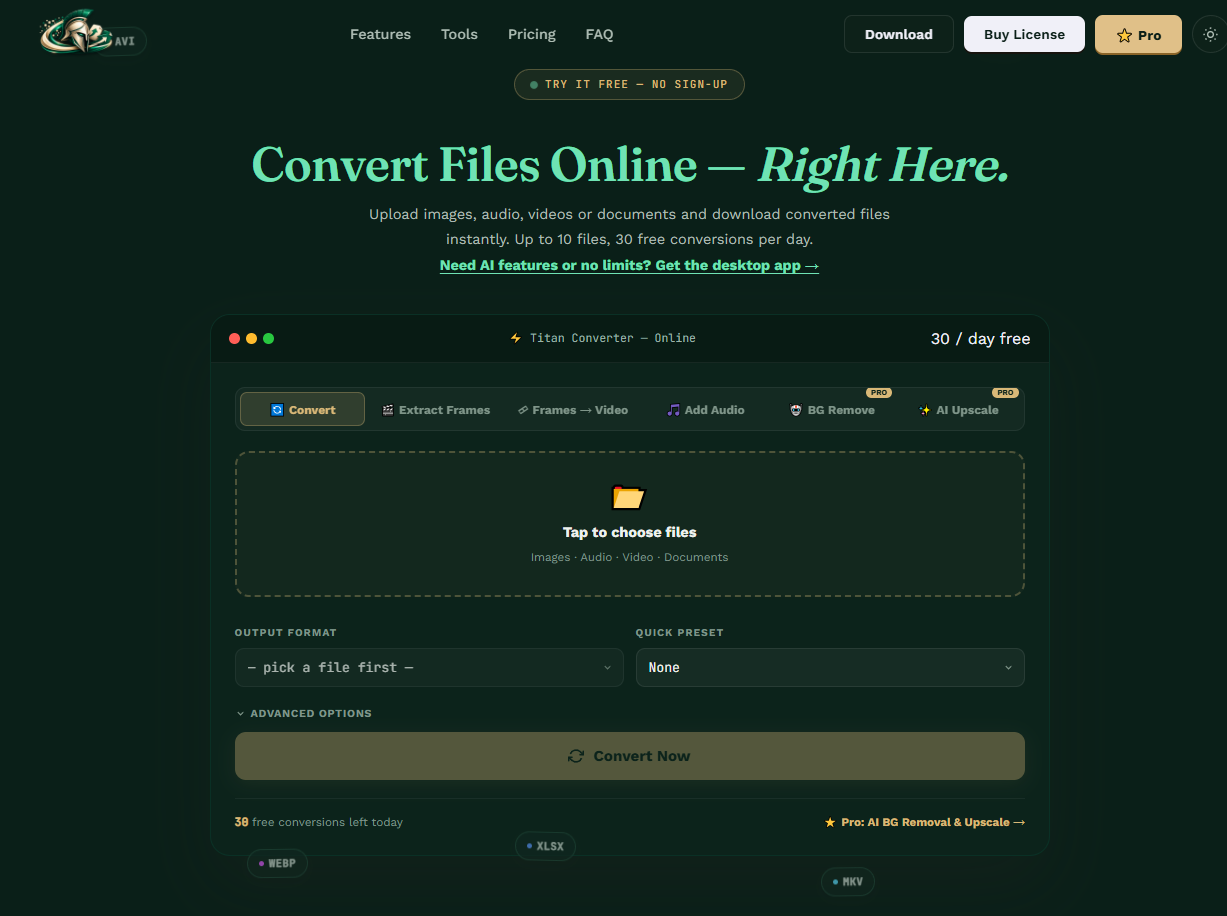
Extract Frames sits right in the main tool bar, next to general conversion and the other format tools.
What Extract Frames Actually Does
Extract Frames takes a video file and pulls individual images out of it — one image per frame, or at whatever interval you set — and saves them as a batch of standalone PNG or JPG files. It's the reverse of what most people think of a video converter doing: instead of turning files into a video, this turns a video into files.
It's a narrow, single-purpose tool, and that's the point. Full video editing software can technically do this too, buried a few menus deep, but if extracting frames is the entire task, opening a full editor for it is overkill. Titan Converter's own demo shows pulling more than 250 individual frames out of one short video in a single batch export.
Actual Situations Where This Comes Up
Picking a Thumbnail
Scrubbing through a video looking for the one frame that makes a good thumbnail or preview image is much easier with a folder of exported stills than scrubbing a timeline repeatedly.
Reference Images
Pulling a specific moment out of footage — a pose, an expression, a product angle — to use as a reference image elsewhere.
Feeding Another Tool
Some image-editing or AI tools expect individual image inputs rather than video, so frames need to exist as separate files first.
Basic Stop-Motion or Timelapse Work
Breaking footage into individual frames for manual frame-by-frame editing or recompiling into something else entirely.
Extracting Frames Step by Step
Open Titan Converter
Use the web version at titanconverter.site, or the offline desktop app if you'd rather not upload the source video.
Select the Extract Frames tab
It sits alongside Convert, Frames → Video, and the other tools in the main tab bar.
Upload your video
Drop in the source file you want to pull frames from.
Choose PNG or JPG and export
Pick your output format and run the extraction — every frame lands in one downloadable batch.
PNG or JPG: Which One to Pick
PNG is lossless, meaning it preserves every bit of detail from the original frame with no compression artifacts, but the files are noticeably larger, which adds up fast across hundreds of frames. JPG compresses the image, resulting in much smaller files at a small cost to fine detail, which is usually invisible unless you're zooming in closely or planning further heavy editing.
- You plan to edit the frame further
- Fine detail or sharp edges matter
- Storage space isn't a major concern
- You're extracting hundreds of frames
- It's for quick reference, not final use
- You want smaller, easier-to-manage files
Getting Usable Results, Not Just a Huge Folder
The most common mistake with any frame-extraction tool is exporting every single frame from a long video by default, which for a standard 30fps video means 1,800 images per minute of footage — a genuinely unwieldy number to sort through afterward. If Titan Converter's interface offers an interval or frame-rate option for extraction, using it to space frames out (say, one every half-second) keeps the output manageable for anything longer than a very short clip.
It's also worth extracting from the highest-quality source file available rather than a heavily compressed or previously re-uploaded copy, since extracted frames can only be as sharp as the video they came from — the tool can't add back detail that was already lost to compression upstream.
Extract Frames vs. Doing This in a Video Editor
Most full video editors (Premiere, DaVinci Resolve, even simpler free tools) technically support exporting a single frame as an image, usually through an "export frame" or "snapshot" option buried in the playback controls. That works fine for grabbing one or two specific frames, but it's a manual, one-at-a-time process — there's no built-in batch mode for pulling out hundreds of frames at set intervals without scripting or a plugin.
That's the actual gap Extract Frames fills. It's not trying to replace a video editor for editing tasks; it's solving specifically for the batch-export case, where you need many frames out of a video quickly rather than hand-picking one still image at a time.
Who Actually Needs a Batch Frame Extractor
Video Editors and Creators
Pulling thumbnail candidates or reference stills from raw footage without scrubbing the timeline repeatedly.
Researchers and Analysts
Breaking down footage — sports, security, lab recordings — into individual frames for closer, frame-by-frame review.
People Feeding Frames Into AI Tools
Some image-based AI tools need individual image inputs rather than a video file, making batch extraction a necessary first step.
Anyone Making a Timelapse or Flipbook-Style Edit
Manually arranging or recompiling individual frames into a different sequence than the original video.
The Bottom Line
Extract Frames solves a narrow but genuinely common problem — getting individual still images out of a video — without needing to open full video editing software to do it. It's fast, handles a real batch of frames at once (Titan Converter's own demo pulls over 250 from one video), and is available on both the web tool and the offline app depending on whether you want the source file to stay local.
Frequently Asked Questions
What image formats can I export extracted frames as?
Titan Converter's Extract Frames tool outputs to PNG or JPG. PNG preserves more detail and is lossless, which matters if you plan to edit the frame further; JPG produces smaller files, which is usually fine for a quick reference image or thumbnail.
Can I extract every single frame from a long video?
Yes, though for a long video that can mean thousands of images, which gets unwieldy fast. Extracting at a set interval (like one frame per second, if that option is available) rather than every single frame is usually the more practical approach for anything longer than a short clip.
Does this work on the offline desktop app too?
Yes. Extract Frames is available in both the web-based version at titanconverter.site and the downloadable offline Windows app, so you can choose based on whether you'd rather keep the source video local.
Will extracting frames reduce the video's original quality?
No, the source video itself isn't altered or re-encoded by extracting frames from it. Each exported frame reflects the resolution and quality of the original video at that exact moment, not a degraded copy.
Titan Converter — Official Site • titanconverter.site • Titan Converter on YouTube
More from the creator
Explore two other projects from the same creator.