Windows 10 End of Support: What to Actually Do in 2026
Windows 10 stopped receiving free security updates back in October 2025, and by now the "figure it out later" window most people gave themselves has run out. The good news is Microsoft's free safety net — Extended Security Updates — turned out to be more generous than first announced, and now covers eligible PCs through October 2027. Here's exactly what changed, what your realistic options are, and how to pick one without overthinking it.
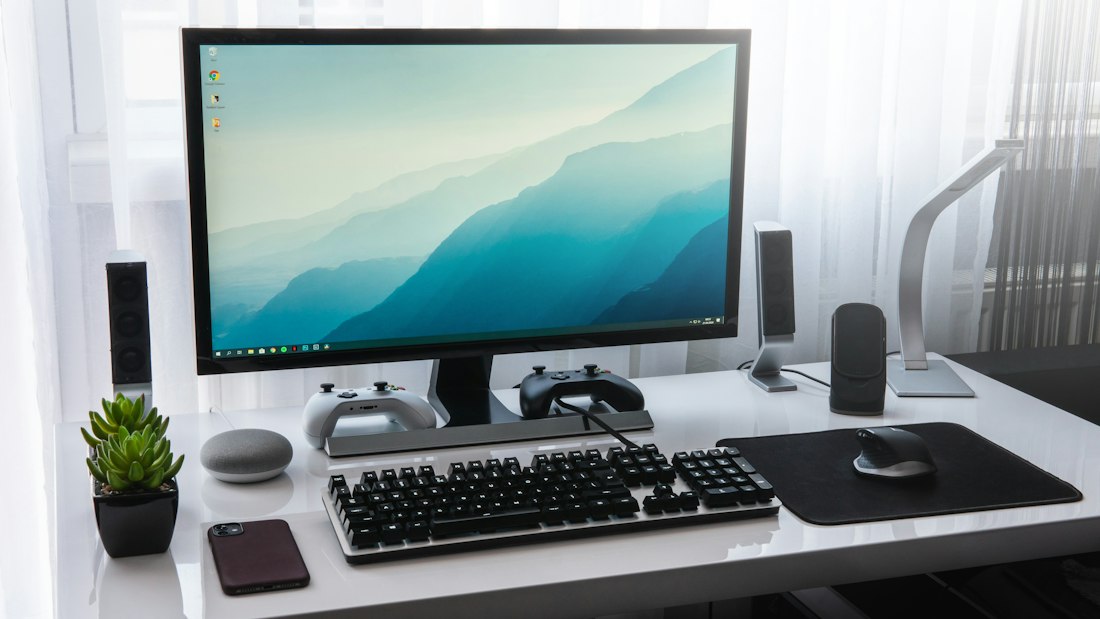
Windows 10 keeps working after end of support — the change is that new security holes stop getting patched unless you enroll in ESU.
Your PC Still Works. The Safety Net Underneath It Doesn't.
Nothing about Windows 10 breaks the day support ends. Your apps still open, your files are still there, and the interface looks exactly the same. What actually changed is that Microsoft stopped investigating and fixing newly discovered security flaws in Windows 10, unless the device is enrolled in Extended Security Updates (ESU). That's the whole story — no cliff edge, just a slow rise in exposure as new vulnerabilities go unpatched.
For most home users, the simplest move is enrolling in the free consumer ESU program, which now runs through October 2027 rather than the original one-year window Microsoft first announced. That buys real time to either upgrade to Windows 11 on the same hardware, or plan a hardware replacement, without rushing a decision this week.
Check If Your PC Can Even Run Windows 11
Before deciding anything else, find out whether an upgrade is even on the table for your hardware — it changes which of the three paths below actually applies to you.
Open Windows Update and look for an upgrade prompt
Settings → Windows Update. If your PC is eligible, Windows will offer the free upgrade to Windows 11 right there — no extra download needed.
Run the PC Health Check app if nothing shows up
Microsoft's free PC Health Check tool checks TPM 2.0, Secure Boot, CPU generation, and RAM against Windows 11's requirements, and tells you exactly which one is failing if your PC doesn't qualify.
Back up your files regardless of which path you take
Whether you upgrade, enroll in ESU, or replace the machine, back up documents and photos first — Windows Backup to OneDrive is the built-in option, but any external drive works just as well.
Upgrade, Enroll in ESU, or Replace the Machine
| Path | Cost | Best for | Trade-off |
|---|---|---|---|
| Upgrade to Windows 11 | Free (if eligible) | PCs from roughly 2018 onward with TPM 2.0 | New interface to get used to; some older peripherals may need updated drivers |
| Enroll in consumer ESU | Free with Microsoft account, or ~$30 one-time | Buying time on hardware that can't upgrade yet | Security patches only — no new features, and coverage still has an end date (Oct 2027) |
| Replace the PC | Varies (new PC cost) | Machines old enough that upgrading isn't worth it anyway | Upfront cost, but no more deadlines to track afterward |
Enrollment terms and the ESU cutoff date have already shifted once since the original October 2025 announcement — treat the dates above as current as of this writing, and double-check Microsoft's own ESU page before enrolling, since Microsoft can adjust the program again.
Match the Option to Your Situation
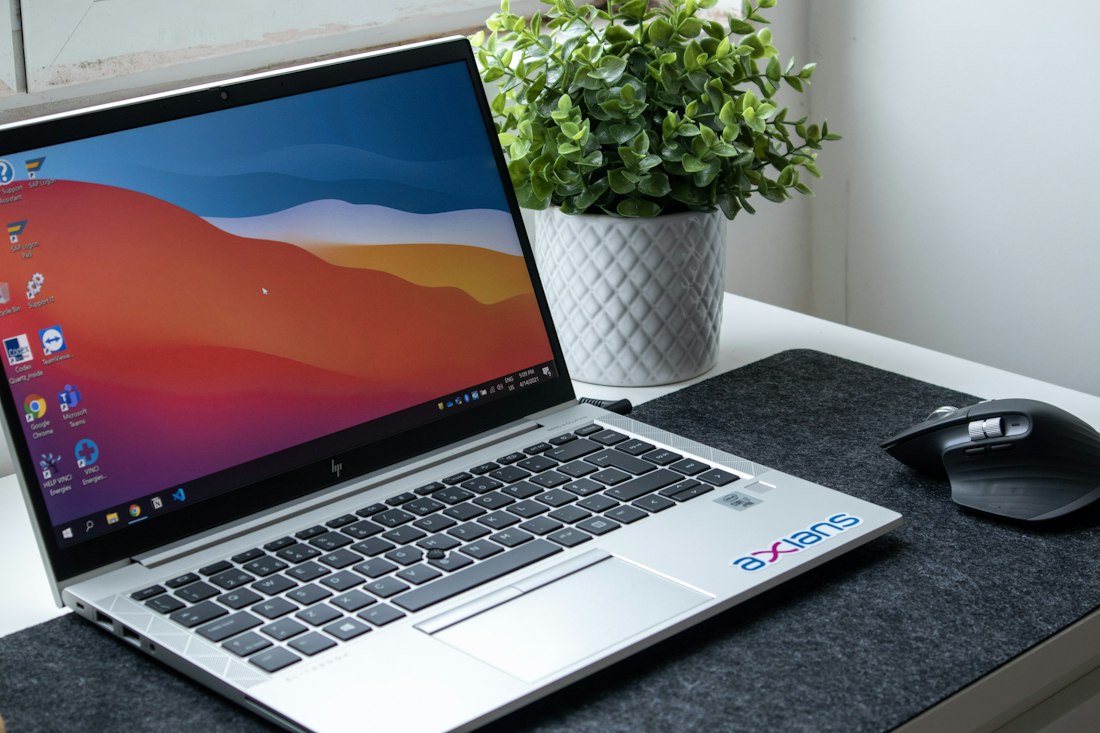
Which option makes sense depends almost entirely on whether your current hardware can run Windows 11 at all.
Upgrade to Windows 11 Now
If Windows Update already shows the upgrade prompt, there's little reason to wait. It's free, keeps you on the fully supported track, and Windows 11 has matured a lot since its rocky early releases.
Enroll in Free Consumer ESU
Sign in with a Microsoft account, turn on Windows Backup when prompted, and you're covered through October 2027 at no cost. This is the right move if you're not ready to replace the machine but still want security patches.
Plan a Replacement
If your PC predates roughly 2018 and struggles with everyday tasks already, ESU is really just delaying an inevitable hardware purchase. Use the extended window to shop without pressure rather than to avoid the decision entirely.
What ESU Does and Doesn't Cover
- Critical and important security patches, same as before end of support
- Coverage across up to 10 devices tied to one Microsoft account (consumer program)
- Breathing room to plan an upgrade or hardware purchase properly
- No forced changes to how Windows 10 looks or behaves day to day
- New features, bug fixes, or general technical support from Microsoft
- Protection forever — it's a bridge with its own end date, not a permanent fix
- Guaranteed compatibility with new software as developers shift focus to Windows 11
- Coverage for devices already joined to a work domain — that's a separate business ESU track
Frequently Asked Questions
Will my Windows 10 PC stop working now that support has ended?
No. Your computer keeps booting, your apps keep opening, and your files stay exactly where they are. What actually changes is invisible: Microsoft no longer investigates or patches newly discovered security holes in Windows 10 unless the PC is enrolled in Extended Security Updates. The risk builds slowly, not overnight.
Is the free ESU option really free, or is there a catch?
It's genuinely free, but it isn't unconditional. To get the no-cost path, you need a Microsoft account signed in as an administrator on the PC, and outside the EEA you'll be prompted to turn on Windows Backup (syncing settings to OneDrive) to unlock it. If you'd rather not link a Microsoft account, the alternative free-ish routes are redeeming 1,000 Microsoft Rewards points or paying a one-time fee, currently around $30.
How do I know if my PC can even upgrade to Windows 11?
Open Settings, go to Windows Update, and look for an option to upgrade to Windows 11 — Microsoft's PC Health Check app will also tell you directly. The main blockers are usually TPM 2.0, Secure Boot, and a supported CPU generation, all things older machines (roughly pre-2018) commonly lack even if everything else about the PC still runs fine.
More Software Guides, Written Clearly
Browse our full library of software explainers, updated as tools, pricing, and deadlines change.
More from the creator
Explore two other projects from the same creator.