How to Turn Images Into a Video With Titan Converter
A folder of product photos, a burst of vacation stills, or a stack of chart exports — turning any of those into a single video file is one of those tasks that sounds simple and usually isn't, unless the tool is built for exactly that. Here's how Titan Converter's Images to Video tool handles it.
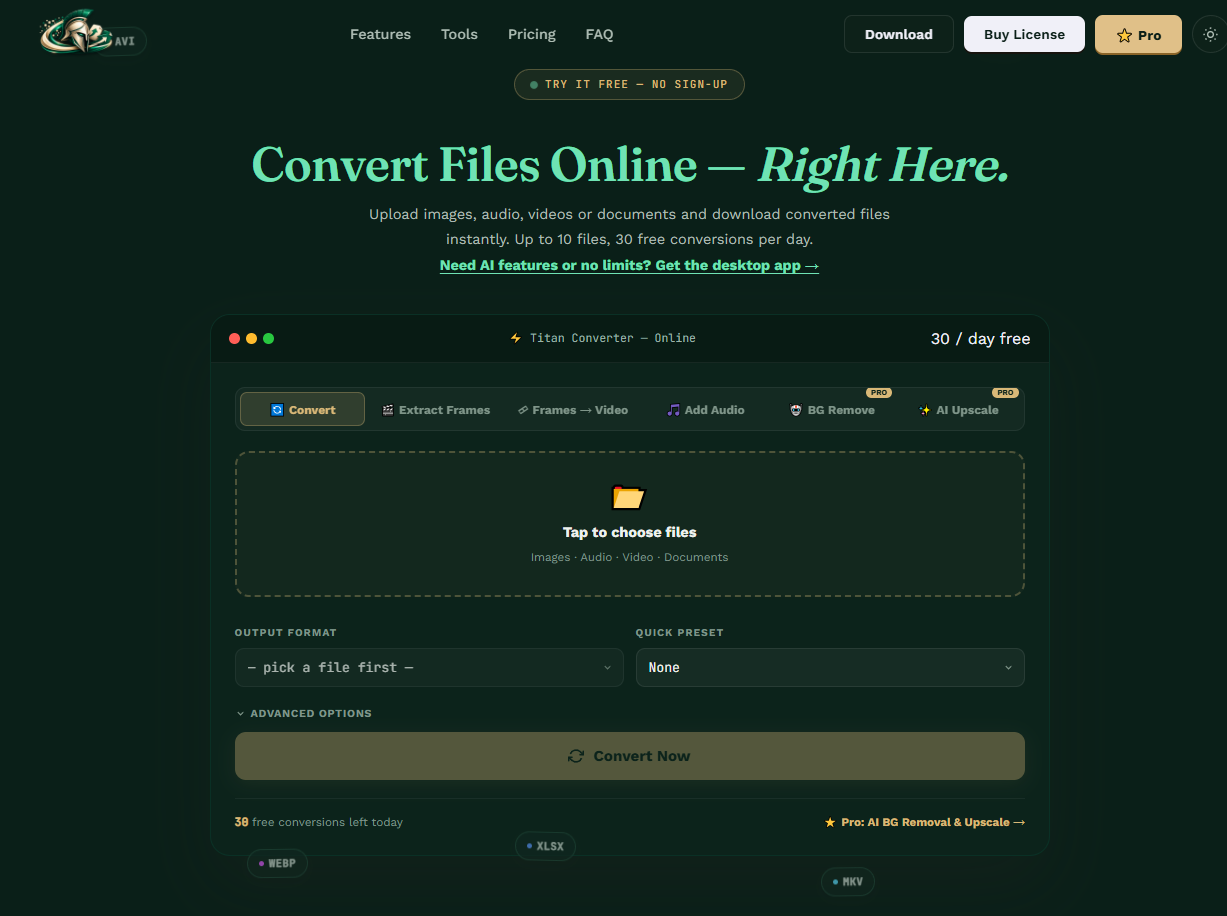
What Images to Video Actually Does
Images to Video takes a ZIP folder of still images — PNG or JPG — and stitches them together in order into a single video file. You choose the frame rate, the output format, and Titan handles the assembly. It's the mirror image of the Extract Frames tool, which does the opposite: pulling stills out of an existing video. Here, you're building a video from stills that never existed as footage to begin with.
This sits in the same web-based tool and the same offline Windows app as the rest of Titan Converter's format conversion, so it isn't a separate download or a separate product — it's one more tab alongside Convert, Extract Frames, and Add Audio.
Actual Situations Where This Comes Up
Timelapses
A camera or a script that saves one frame every few seconds over hours or days produces a folder of hundreds or thousands of stills. Turning that into an actual timelapse video means assembling them in sequence at a frame rate fast enough to compress the real elapsed time into something watchable.
Animation and UI Demos
A sequence of rendered frames from an animation tool, or a series of screenshots showing steps in a workflow, becomes a much easier thing to share and watch once it's one video file instead of a folder to click through manually.
Slideshow-Style Video
Product photos, event photos, or a portfolio of images turned into a slideshow video is a common enough need that doing it inside a full video editor feels like overkill for something this direct.
Choosing the Right Speed
The frame rate you pick changes the entire feel of the output, and it's the one setting worth actually thinking about rather than leaving at a default. Titan Converter supports the full range from 1 fps up to 120 fps, which covers both ends of what people actually need this tool for.
| Use Case | Typical Frame Rate | Why |
|---|---|---|
| Slideshow of a handful of photos | 1–6 fps | Each image needs to hold long enough on screen to actually register with a viewer |
| Timelapse from hundreds of sequential stills | 24–30 fps | Compresses long real-world time into a short, smooth clip |
| Stop-motion or frame-by-frame animation | 12–24 fps | Matches the frame rates traditional animation is built around |
| Near-video smoothness from a dense image sequence | 30–60 fps | The higher end of the range starts to feel like continuous motion rather than a slideshow |
There's no universally correct number here — it depends entirely on how many images you have and how long you want the result to run. A quick way to estimate: divide your total image count by your chosen fps to get the video's runtime in seconds.
MP4, GIF, or Something Else
Titan Converter exports the assembled video as MP4, AVI, WEBM, MOV, animated GIF, or animated WebP, and which one makes sense depends on where the result is going.
MP4
The default choice for most cases — broad compatibility, reasonable file size, and it plays natively almost everywhere.
Animated GIF or WebP
Best for a short, looping clip meant to drop into a chat, a webpage, or a social post rather than play as a standalone video. WebP produces a noticeably smaller file than GIF at similar quality, at the cost of slightly less universal support in older software.
WEBM
A strong option specifically for web use, since it tends to compress more efficiently than MP4 for the same visual quality.
Putting Audio Behind the Finished Video
Images to Video on its own produces a silent clip, since there's no audio track hiding inside a folder of still photos. If the final result needs music or narration, that's a separate step: Titan Converter's Add Audio tool takes the video you just built and an audio file — MP3, WAV, or AAC — and mixes them into one MP4 with sound.
Running these as two distinct steps rather than trying to do everything in one pass keeps each tool simple and focused, which is consistent with how the rest of Titan Converter is built: narrow tools that each do one job, rather than one dense tool trying to do everything with a maze of settings.
Browser or Desktop App
Images to Video works the same way in both places Titan Converter runs. The browser-based version at titanconverter.site handles it with no install, capped at 30 free conversions a day. The free 30-day Windows desktop trial removes that daily cap and processes everything locally on your own PC, which matters more here than for a single-file conversion, since a folder of hundreds of timelapse stills can be a meaningfully large upload if you're relying on a slow connection.
- Zip your images. Put every still you want in the video into one ZIP file, in the order you want them to play.
- Open the Frames to Video tool in the browser converter or the desktop app.
- Upload the ZIP and set your frame rate and output format.
- Optionally add an audio track if you want the video to have sound, using the Add Audio tool afterward.
- Convert and download the finished video file.
Questions People Actually Ask
What image formats can I use to build a video?
Titan Converter's Images to Video tool accepts a ZIP of PNG or JPG files. Drop in a folder of stills, and it assembles them in order into a finished video.
What frame rate should I use for a timelapse versus a smooth slideshow?
A slideshow of a small number of images typically looks best around 1 to 6 fps, so each photo holds long enough to register. A timelapse built from hundreds of sequential stills, or footage meant to look like smooth video, generally wants something closer to 24 to 30 fps. Titan Converter supports the full 1 to 120 fps range, so you can match whichever effect you're going for.
Can I add music or narration to the video I build?
Yes. Once your images are assembled into a video, Titan Converter's separate Add Audio tool lets you mix in an MP3, WAV or AAC track and export the combined result as MP4.
Does this work offline?
Yes. Images to Video is available both in the browser-based converter at titanconverter.site and in the free Windows desktop app, which processes everything locally with no upload.
Titan Converter — Official Site • titanconverter.site • Titan Converter on YouTube
More from the creator
Explore two other projects from the same creator.